Building a Modern Release Process for Blog Posts
One of the earliest articles I ever wrote was about the posting process that my blog posts followed. It used a local typescript script that accessed the mongoDB database and added/updated a blog post. It was simple and good enough for the features that the site had at that point. I've been using and expanding that posting process for a while now, but I find myself at a crossroads... OG Images are being generated and stored the first time they are accessed (which takes a while), My local machine is taking a good 20 or so seconds to run all the local release steps, and I find myself wanting to add new features such as a mailing list to announce new posts. I need to start running this on a server so that I can start running these steps in parallel. That does mean, however, that I'm going to have to rebuild the posting process from the ground up.
The Plan
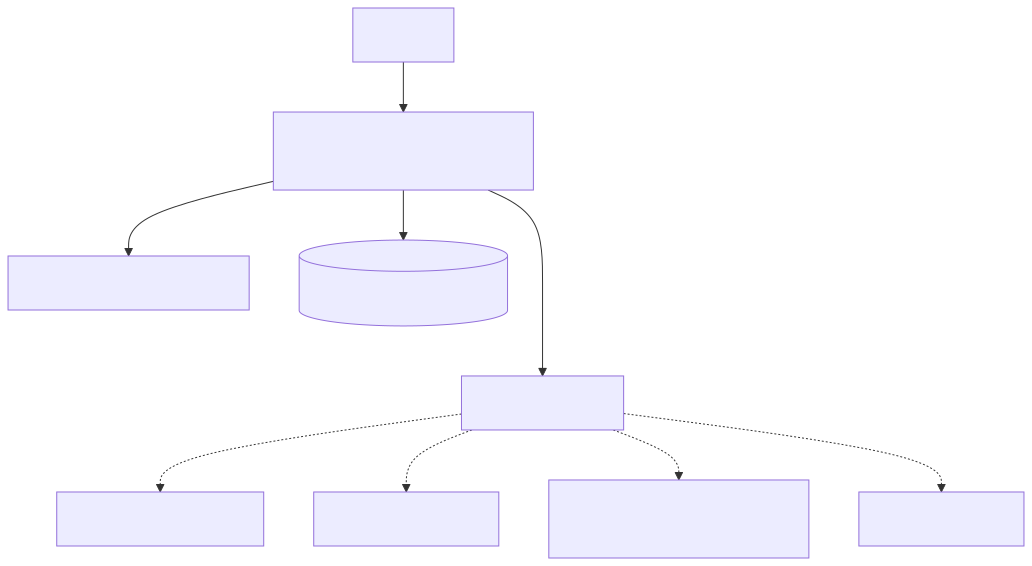
The plan is to use Google Cloud Functions (Google's equivalent of AWS' Lambdas) to create a new post submission endpoint. It will be secured via some form of authentication and will perform three actions: Add the post to the database, upload any embedded images to Cloudflare File Storage and put a message into a PubSub topic. From there, I can add as many different concurrent processes as I need that run off the back of a blog post release.
Plan Considerations
There are a few considerations I have to make with this plan. Before this build I have 2 Cloud Functions - the OG Image generator (which should get dramatically simpler as it will no longer need database access) and the Web Mention Processor. The Web Mention Processor currently uses PubSub but has its own topic that is added to by Cloud Scheduler. Currently my Google Cloud bill is about 0.03 GBP a month. Given that I tend to post here anywhere from 2-4 times a month and I'm barely breaking out of the Free Usage Tier, I'm likely to see an increase in my Google Cloud Bill as I'll be adding at least 5 new Cloud Functions and 1 new PubSub topic. That being said, these new Cloud Functions will likely be closer to the Web Mention handler in that they use minimal resources and therefore quite cheap to run.
I will need to build some sort of script for submitting to this endpoint. I'm confident that a full UI would be overkill as this is essentially my own weird headless CMS. Unlike the old release script, I want to do as little logic in the local script as possible. As such, It should be more than doable in bash. I can use grep to read the paths of any images from the file and then upload the markdown file as well as any embedded images via the cURL Command.
The final consideration is that currently, the only type of authentication that is needed is a mongoDB user for anyone that has post permissions. This new endpoint will require some form of authentication as it will be publically accessible (although likely IP locked).
The Build
The Build can be broken down in to various parts. I won't go through every Cloud Function as that could get quite repetitive. For the sake of brevity, I'll be explaining the build for main API endpoint (including how it uploads images to Cloudflare) as well as explaining the changes to the OG Image Generator to support receiving blog post information via PubSub rather than reading it from the database. I'll also explain the local bash script, however, you can read the original release process blog post if you want to know how to integrate that into Typora as I have done.
The bash script
The bash script is probably the simplest element of this whole, over the top, system. We can begin by creating a few variables which we will be using. We need the submission URL, an Integer to use as an incremental ID for the images, and finally an arguments array in which we will start with our markdown file.
#!/bin/sh
url="http://localhost:8080/" # This will need changing once there is a live version of endpoint
curl_opts=(-F "markdown=@$1")
i=0;
Next, we want to access the markdown file from a passed argument ($1) and grep through it to find any images (remember that markdown images follow the structure ). We can check for the closing ] character followed by an opening bracket. We can then check for any valid path as long as it is an image. This can all be done in the following command.
grep -Eo "\]\((.\/|\/)[^\"]*\.(jpg|png|gif|webm)" $1
This grep command will spit out each image url, with the ]( character before them, on a separate line. From here we can iterate through the lines by piping the grep into a loop. We can take each line, minus the first 2 characters, and use it to add to our image to the curl_opts variable. When adding each image, we pass the path inside speech marks and add an @ symbol to tell cURL that we want to pass the image rather than passing its path as a string. We use the i variable to store each image on it's own index in the form of image-1, image-2, etc.
IFS=$'\n'       # make newlines the only separator
imagePaths=($(grep -Eo "\]\((.\/|\/)[^\"]*\.(jpg|png|gif|webm)" $1));
for imagePath in "${imagePaths[@]}"; do
  i=$((i + 1));
  curl_opts+=(-F "image-$i=\"@${imagePath:2}\"")
done
unset IFS
Once we have all our images added to the command, we can call our cURL Command with the various arguments. The -v argument will be dropped in the final version, but is useful for debugging.
curl -v "${curl_opts[@]}" "$url"
The Deployment Endpoint
To begin building the new Endpoint, we need to set up our cloudbuild.yaml file. This will ensure that Google Build knows how to create our Cloud Function. We don't need too much memory here, as markdown is only text and it's unlikely that any images that we upload will be in 8k. 256MB should be more than enough. We'll be building for NodeJS 16 and we want it to have a http trigger. We can add those various options to an SDK deploy command after we install our dependancies and build our project.
steps:
- name: node
  entrypoint: npm
  args: ['install']
- name: node
  entrypoint: npm
  args: ['run', 'build']
- name: 'gcr.io/google.com/cloudsdktool/cloud-sdk'
  args:
  - gcloud
  - functions
  - deploy
  - postDeploy
  - --entry-point=postDeploy
	- --region=[your region]
  - --project=[projectName]
  - --runtime=nodejs16
  - --trigger-http
  - --memory=256MB
I also set up a simple typescript Rollup config file, a tsconfig.json and .gitignore. The basic NodeJS Project things. After installing some dependancies (namely, @google-cloud/functions-framework), I can create the function in my src/index.ts file.
// src/index.ts

import { http, HttpFunction } from '@google-cloud/functions-framework';

const postHandler: HttpFunction = async (req, res) => {
  // We don't want to respond to anything except POST requests
  if (req.method !== 'POST') return res.status(405).end();
  // ToDo: Write actual function
}

export const postDeploy = http('postDeploy', postHandler); //Export the cloud function with the needed http trigger
In order to read files, we need to include a library called busboy. With this library installed, we can stream all of the files to a temporary storage location inside the Cloud Function's memory. We can use that in-memory location as a point from where we can process the file. I'm going to try my best to explain this bit using code comments as it's working with multiple streams and promises. I'm sorry if it's a little hard to follow.
// src/lib/get-posted-content.function.ts

import { Request} from '@google-cloud/functions-framework';
import Busboy from 'busboy'
import fs from 'fs'
import { tmpdir } from 'os';
import path from 'path';
import { PostedContent } from '../types/posted-content.type';

export const getPostedContent = (req: Request): Promise<PostedContent> => new Promise((resolve, reject) => {
  const busboy = Busboy({headers: req.headers}); // Create an instance of Busboy
  const fields:Map<string, any> = new Map<string, any>(); // Create a Map in which to store fields
  const files:Map<string, string> = new Map<string, string>(); // Create a Map in which to store in-memory file paths, keyed by the local path from which they were uploaded
  const fileDir = tmpdir(); // This is the root directory of the in-memory storage
  const uploads:Promise<unknown>[] = []; // The array in which we will keep track of in-process uploads

  // Read each field that has been POSTed and store it in the Map
  busboy.on('field', (fieldname, val) => fields.set(fieldname, val));

  // For each file that is POSTed we need to:
  // - generate a filepath
  // - store the filepath in the files Map
  // - Create a new read stream for the file
  // - Write the file to temporary storage using that read stream
  // - push a promise that resolves when the stream is complete to the uploads array
  busboy.on('file', (_, file, {filename}) => {
    const filepath = path.join(fileDir, filename);
    files.set(filename, filepath);
    const writeStream = fs.createWriteStream(filepath);
    file.pipe(writeStream);
    const promise = new Promise((res, rej) => {
      file.on('end', () => writeStream.end());
      writeStream.on('finish', res);
      writeStream.on('error', rej);
    });
    uploads.push(promise);
  });

  // Once busboy has finished, resolve the function with all the fields and files
  busboy.on('finish', async () => Promise.all(uploads).then(() => resolve({
    files,
    fields
  })).catch(reject));

  // Kick everything off
  busboy.end(req.rawBody);
});
We can create a function that finds markdown files within the uploaded file list using the mime-types library. By filtering via mime-type, it allows our endpoint to (in theory) handle multiple articles at once. We can then read the files as strings and move them to the next step of the process.
// src/lib/get-markdown.function.ts

import {promises as fs} from 'fs'
import mime from 'mime-types';

export const getMarkdown = async (files: Map<string, string>):Promise<string[]> => {
  const markdownFiles = Array.from(files.values()) // We don't care about the names of these files
    .filter((path) => mime.lookup(path) === 'text/markdown') // performs the mime type check and removes none markdown files
    .map(async (path) => fs.readFile(path, 'utf8')); // Reads the files as utf8 strings
  return Promise.all(markdownFiles); // returns the contents of the markdown files in an array
}
Empty Maps are not falsey. Empty Arrays, however, are falsey. As such, when we check that we have markdown to process - in order to ensure that we don't waste compute time - we need to check that the files Map size is not zero and that the markdown array isn't empty. If either of these are empty, we can return a Bad Request Error (400).
// src/index.ts

const postHandler: HttpFunction = async (req, res) => {
  // We don't want to respond to anything except POST requests
  if (req.method !== 'POST') return res.status(405).end();

  // Get the uploaded files and data
  const postedContent = await getPostedContent(req);
  // If no files were suplied, error 400
  if(postedContent?.files.size === 0) return res.status(400).send('Must supply at least one file').end();
  const markdownFiles = await getMarkdown(postedContent.files);
  // If none of the supplied files are markdown, error 400
  if(!markdownFiles) return res.status(400).send('Must supply at least one markdown file').end();
}
Now that we have the markdown content. We can process the article. This involves pulling out key details such as the post title and the blog post description as well as replacing the image paths in the markdown with URLs to their storage locations in Cloudflare Image Storage. I've already gone over how to pull a title and a description out of a markdown file in the original blog post on publishing blog posts. However because, we're now running this as an API endpoint, we need to process the images slightly differently than I did originally. In the below code, the imgReplacer function call is for a function that generates a regex expression for the markdown, based on what it get's replaced with, you can work what this regex looks like.
// src/lib/process-article.function.ts -> Inside the processArticle function

// Get any included Images, Upload Them to Cloudflare and get their url.
// Ignore uploaded files that do not appear in the markdown
let includedFiles = await Promise.all(
  Array.from(files.entries())
  .filter(([file, path]) => (mime.lookup(path) || '').startsWith('image/'))
  .filter(([file, path]) => markdown.match(imgReplacer(file)))
  .map(async ([file, path]) => ({file, upload: await uploadImage(file, path) }))
);

// Replace image markdown "(alt-text)[image-path]" with the url version "(alt-text)[cloudflare-url]"
for(let {file, upload} of includedFiles) {
  markdown = markdown.replace(imgReplacer(file), `](${upload.url})`);
}

// Throw an error if there are any embedded images that were not uploaded and delete uploaded images to reduce clutter
if(markdown.match(/^\[(.*)\]\((\/|(\.\/))(.*)\)/gm)) {
  await Promise.all(includedFiles.map(({upload}) => deleteImage(upload)));
  throw new Error('FATAL: All Embedded images must be uploaded');
}
You might notice in the above code, I call uploadImage and deleteImage. These are custom wrappers around the cloudflare image upload and delete endpoints respectively. I won't go over the delete function. The upload function reads the file from its path, into a buffer. It adds that buffer to a multipart form data object which it then attaches to a POST request to the endpoint. It sounds like a lot of steps but this is how to upload an image to cloudflare in NodeJs.
import * as fs from 'fs';
import FormData from 'form-data';
import fetch from 'node-fetch';

export const uploadImage = async (fileName: string, path: string): Promise<{url: string, id: string}> => {
  console.log(`Uploading image ${path} to Cloudflare Storage`);
  const buff = fs.readFileSync(path); // Read the path as a buffer

  // My code reads these next two values from secrets but I've written them as strings here for your benifit reading
  const account = 'YOUR_CLOUDFLARE_ACCOUNT';
  const token = 'YOUR_CLOUDFLARE_TOKEN';
  const url = `https://api.cloudflare.com/client/v4/accounts/${account}/images/v1`; // get the upload url
  const headers = {
    'Authorization': `Bearer ${token}` // attach your token as a bearer token
  }

  const formData = new FormData(); // create a new form data object
  formData.append('file', buff, fileName.split('/').pop()); // add the buffer to the file field and pass the name

  // Send the post request and await the json response.
  const res: any = await (fetch(url, {
    method: 'POST',
    body: formData,
    headers
  }).then(res => res.json())).catch(() => throw new Error(`Image upload failed for file ${path}`));

  // the success field on the response json will tell us if the upload to cloudflare was successful
  if(!res.success) {
    console.error(...res.errors);
    throw new Error(`Image upload failed for file ${path}`);
  }

  // pull out the file variations and the id from the response
  const { id, variants } = res.result;

  // we only care about the default "public" variant for now
  const publicImage = variants.find((url:string) => url.endsWith('public'));
  console.log(`Image uploaded to ${publicImage}`);

  // return the details neede
  return ({id, url: publicImage});
}
Now that we have images uploading, we're pulling out the title and description and we're adding those uplaoded image urls to the markdown. We need to add the other blog post meta data. The old code could read the local markdown file to work out when the post was "created", "updated" and so on. This made sense given it was a local system for publishing. However, the new date function will list the "createdDate" as the date when the API endpoint was hit for the first time (for this article) and the publish date will either be the same or whenever an optionally passed 'publishDate' field is set to. The updatedDate will always be set whenever we send a request to modify an article.
const modifiedDate = new Date();
const creationDate = existingPost ? existingPost.creationDate : modifiedDate;
const postDate = postedContent.fields.get('postDate') ? new Date(postedContent.fields.get('postDate')) : existingPost && existingPost.postDate || creationDate;
You might notice that I reference existingPost in the above code. I haven't actually added anything to grab that yet so it's always undefined. Let's fix that next. Because the user might be uploading a new article, we unfortunately can't get the article based on the Id as it we wouldn't be able to generate it consistently. Likewise, as the the post's dates are being created here, we can't use them to fetch an existing post either. As such, we'll have to rely on the only two things that should be consistent from point of upload: The Title and The Author.
const existingPost = await getExistingBlogPost(title, author);
Now, getting the author has been simplified a lot. The old local system read the user's github config file so as to get their email address and then used that to figure out who the author is. Thankfully as this api endpoint is authenticated, that won't be needed anymore. We can use the user's authenticated token to figure out who's publishing the article. That being said, if I have a guest author at any point, I might not want to give them permission to publish the article themselves and therfore should be able to read this from a POSTed author field as well. We're going to assume anyone who understand running cURL commands and bash scripts will understand the structure of the Id field (I know this is a risk, don't @ me).
const author = postedContent.fields.get('author') ? new ObjectId(postedContent.fields.get('author')) : user;
You may notice that the URL that you use to access these blog posts is the date upon which the article was posted followed by the title of the blog post. I'm going to lift the function that does this from the old system verbatim as I don't want to mess with that too much and end up breaking the urls for anything that gets modified in future.
With that, we have all the data for the blog post that we need in order to store it. We can create a new "constructed" blog post object and then either insert or update our post in mongoDb. We'll use spread syntax on the existing post if it exists to ensure that database IDs stay the same and that any blog post notices remain visible (these normally only get added when I modify something technically so I don't need to add them to the endpoint).
const key = createKey(postDate, title);
const constructedPost: BlogPost = {
  ...(existingPost ?? {}),
  author,
  title,
  key,
  body: markdown,
  description,
  creationDate,
  modifiedDate,
  postDate,
  images
};
const db = await getDb();
const collection = await db.collection<BlogPost>('YOUR_BLOG_COLLECTION');
if(constructedPost._id) collection.updateOne({_id: constructedPost._id}, { $set: constructedPost})
else collection.insertOne(constructedPost);
Our final step is to send the pubsub message. We don't need to include all the fields for a blog post. For instance, including the full markdown would be overkill. We'll add an extra field called newPost which will be a boolean that indicates if the pubsub message is about a new post or an update. That allows us to have some subscriptions only perform any actions based on new posts (we don't want to send an email every time I update a blog post).
import { BlogPost } from "./types/blog-post.type";
import { env } from "./env.function";
import { PubSub } from '@google-cloud/pubsub';
import { format } from "date-fns";

export const sendBlogPostPubsub = async (post: BlogPost) => {
  const pubsub = new PubSub({
    projectId: 'CLOUD_PROJECT_ID'
  });

  const topic = pubsub.topic('BLOG_PUBSUB_TOPIC');

  await topic.publishMessage({
    json: {
      newPost: !post._id, // If the ID is unset then it's a new post
      description: post.description,
      title: post.title,
      author: post.author,
      postDate: format(post.postDate, 'yyyy-MM-dd HH:mm:ss'),
      modifiedDate: format(post.modifiedDate, 'yyyy-MM-dd HH:mm:ss'),
      key: post.key // The key is important as that is how the article is accessed
    }
  })
After a bit of testing, I'm happy with the new main deployment function. From here, I can build the various subscribed Cloud Functions. All we have to do is set these new cloud functions up as being triggered by messages on the given pubsub topic.
Updating the OG Image generator
Before reading this next section it would be helpful for you to read the original og-image lambda post.
The first change we need to make is changing the function type from a http trigger to a pubsub trigger. To do that, we need to import a few different types. Once we have the types imported, we can swap the http function for the cloudEvent function.
import { CloudEvent, cloudEvent } from "@google-cloud/functions-framework";
import { MessagePublishedData } from "@google/events/cloud/pubsub/v1/MessagePublishedData";

export const ogImageGenHandler = cloudEvent('ogImageGen', async (event: CloudEvent<MessagePublishedData>) => {
 	//cloud function code
}
Rather than reading the post from the database, we can instead parse it from the event that we pass to the cloud function. It will be sent as base64 encoded JSON and as such we will need to parse it like so.
const base64Body = Buffer.from(event.data!.message!.data!, 'base64').toString();
const post:UpdateMessage = JSON.parse(base64Body); // UpdateMessage being a type that I defined as what we send to pubsub

if(!post.newPost) return; //We only need a new OG Image when the post is first created
The final code change we need is to remove any return logic as this won't be retuning anything. Instead it will be directly uploading to cloudflare using an upload function very similar to the one we used in the blog post deployment lambda.
// Take a screenshot
const element = await page.$('.og-image');
const buffer = await element!.screenshot({});
await uploadOG(post.key, buffer);
For our build process, we will also need to change our --trigger-http argument to instead include the pubsub topic that we want to subscribe our cloud function to. We can do that by changing --trigger-http into --trigger-topic=[topic] where [topic] is the name of the pubsub topic.
That's a wrap
Once those are deployed to Google Cloud, all that's left to do is add the deploy script to my Typora config and then deploy this post. If all that works (I know it does, I've done more than enough testing) then you should be able to read this post. The Twitter integration and mailing list features will come later as this has already taken a significant amount of time to build. I hope it's been an interesting read for you, I know it's been fun to write for me and I look forward to hearing your feedback on the article!