Native OS Share Options via Web
Don't you just love the native share UI on Android and IOS? Well, did you know that you can provide that exact experience to users of your website using the navigator.share web API? You can do so in just a couple of minutes and a few lines of JavaScript!
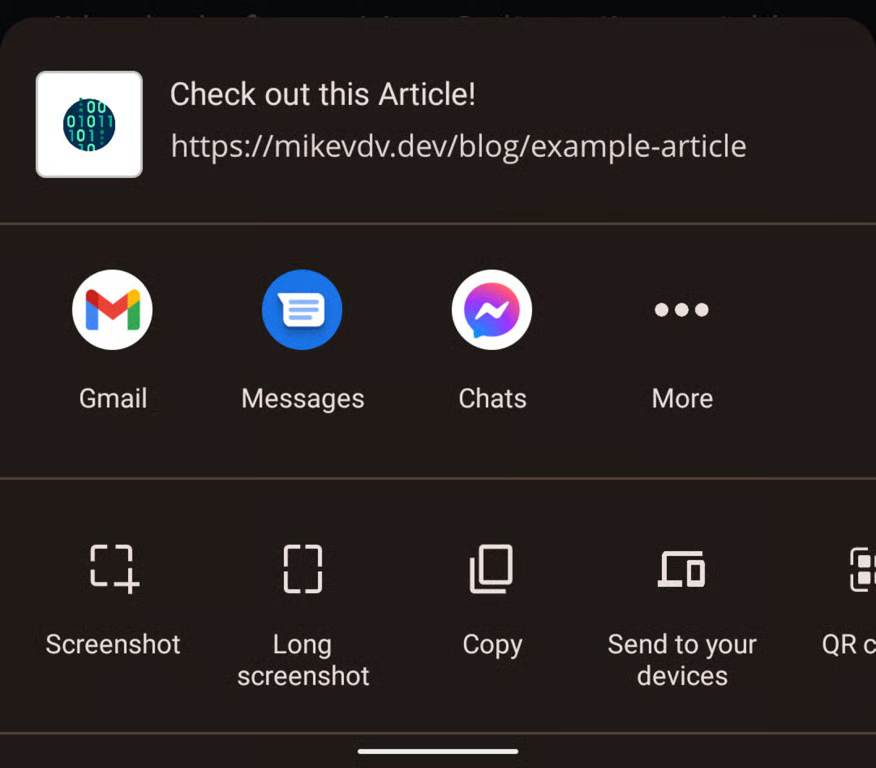
You should be aware that at the time of writing, I'm not aware of any desktop browsers that support this feature, although it is supported by all major mobile web browsers. Because you are accessing a native OS function, there are also a few security requirements to be aware of. That being said, there are no requirements that shouldn't be standard in 2022.
- Your page must be provided over HTTPS
- It can only be opened as the result of user interaction via the likes of a user click.
Once you've taken care of that you need to decide what you are sharing as the process is slightly different depending on if you are sharing a link or a file.
Sharing Links
To share a link, the first thing you should do in your share function is check that the browser supports navigator.share. To do that, the simplist way is to check if navigator.share exists in scope. We can use a bang operator (!) to check if it's falsey and avoid wrapping all of our code in an if block.
async function shareUI() {
  // Rather than simply returning, I'd recomend using some sort of
  // fallback sharing function. Such as copying the url to the clipboard
  if(!navigator.share) return fallbackShare();

  // TODO: Implement share UI
}
Assuming it does exist and your fallback function hasn't been called, we can move on to calling the share function itself. It takes 3 arguments:
- The page title
- The Text that you want to accompany the url when shared
- The URL itself
As this is an async function we should also catch any errors that it might throw.
navigator.share({
  title: document.title,
  text: 'Check out this web page!',
  url: document.location.href,
}).catch(e => console.error(`Share failed: ${e.message}`));
In this current version we are grabbing the document url directly from the browser. However, it is recommended that we supply the canonical url instead if it is set for the current page. To do that, we can use the following code to check for a canonical meta tag and fall back to the page url if it's not found.
let url = document.location.href;
let cannonical = document.querySelector('link[rel=canonical]');
if(cannonical) url = cannonical.href;
Once that's done, our final share function should look like this.
async function shareUI() {
  // Check if share UI is supported and fallback to your own fallback option if not
  if(!navigator.share) return fallbackShare();

  // Get Page URL
  let url = document.location.href;
  let cannonical = document.querySelector('link[rel=canonical]');
  if(cannonical) url = cannonical.href;

  // Share Page and log failures
  await naavigator.share({
  title: document.title,
    text: 'Check out this web page!',
    url,
  }).catch(e => console.error(`Share failed: ${e.message}`));
}
As stated in the introduction, we can only perform this function on the back of a user interaction. So create a button with a relevant id such as share-button and use an event listener to link it up to our function. When your button is all linked up, you can access your page over HTTPS on a mobile device and it should show you the share UI when clicked.
<!--index.html-->
<button id="share-button">Share this page!</button>
/* Back in your JS file */
const shareButton = document.querySelector('#share-button');
if(shareButton) shareButton.addEventListener('click', shareUI)
Sharing Files
Initially sharing files is much the same as sharing a url, however we first need to check if the device has the ability to handle a given file. To do that, we need to fetch the file from whatever URL it's stored on and convert it to a file in the browser. In this example, we'll use a pdf.
async function getPdf() {
  // fetches a PDF stored on the root of the current domain
  const response = await fetch("/example.pdf");
  // Convert it to an array buffer
  const buffer = await response.arrayBuffer();
  // Use the buffer to create a file
  return new File([buffer], "example.pdf", { type: "application/pdf" });
}
With a file successfully created, we now need to use navigator.canShare to check if the browser can share the current file. Google supply this handy list of files that chromium based browsers can usually support.
/* inside your shareUIFile function */
const files = [await getPdf()];
const canShare = navigator.canShare && await navigator.canShare(files);
canShare will be a boolean value. If it's set to true, you can call your share function with your files argument instead of the url field.
await navigator.share({
  title: document.title,
  text: 'Check out this PDF!',
  files,
}).catch(e => console.error(`Share failed: ${e.message}`));
Once linked up to your button, on a mobile device via HTTPS, you should now be able to share that PDF file.
You may notice, that we defined files as an array. You would be correct to assume this means you can share multiple files at the same time. You can also check that you canShare them all at once.
Wrap up
This is a really nice Browser API that means that you don't need to build a specific share integration with every social network. I feel like the file sharing is a little cumbersome as you can't directly provide URLs for files. I do understand why it was built this way however, as it allows for client generated files to be shared. In fact, a very old version of this site did CV generation on the client side and stored it in a blob for download. Thankfully, I have long since changed that.